Accounts & your team
This page covers how accounts work in Rectiva and how to bring your team in.
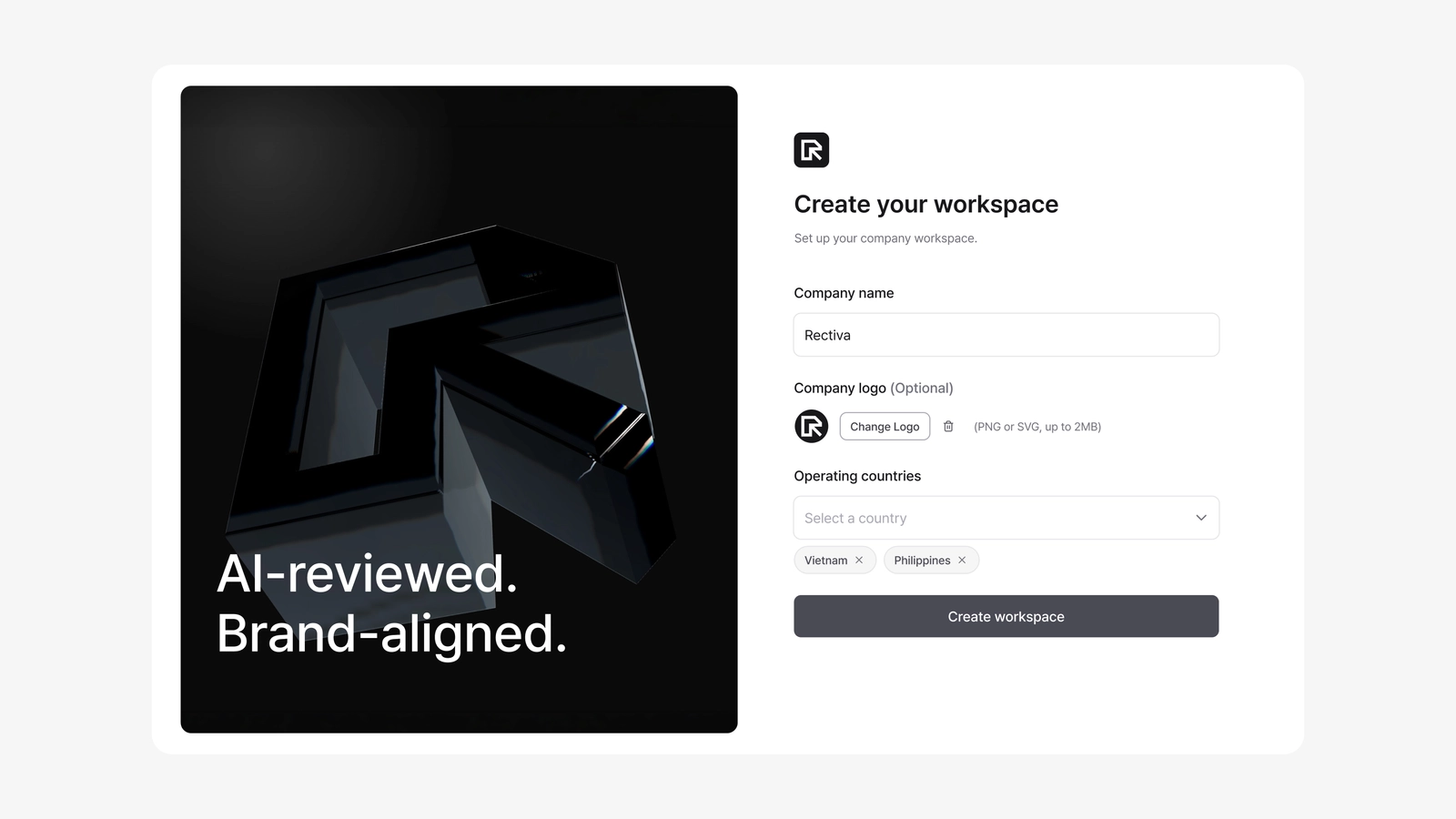
Signing up creates your workspace
When you sign up, Rectiva creates a company workspace for you and makes you its Super Admin. From there you set up the brand system and invite the rest of your team.
One email belongs to one company. An email already registered with another company can't create a new workspace or accept an invitation from a different one.
Inviting your team
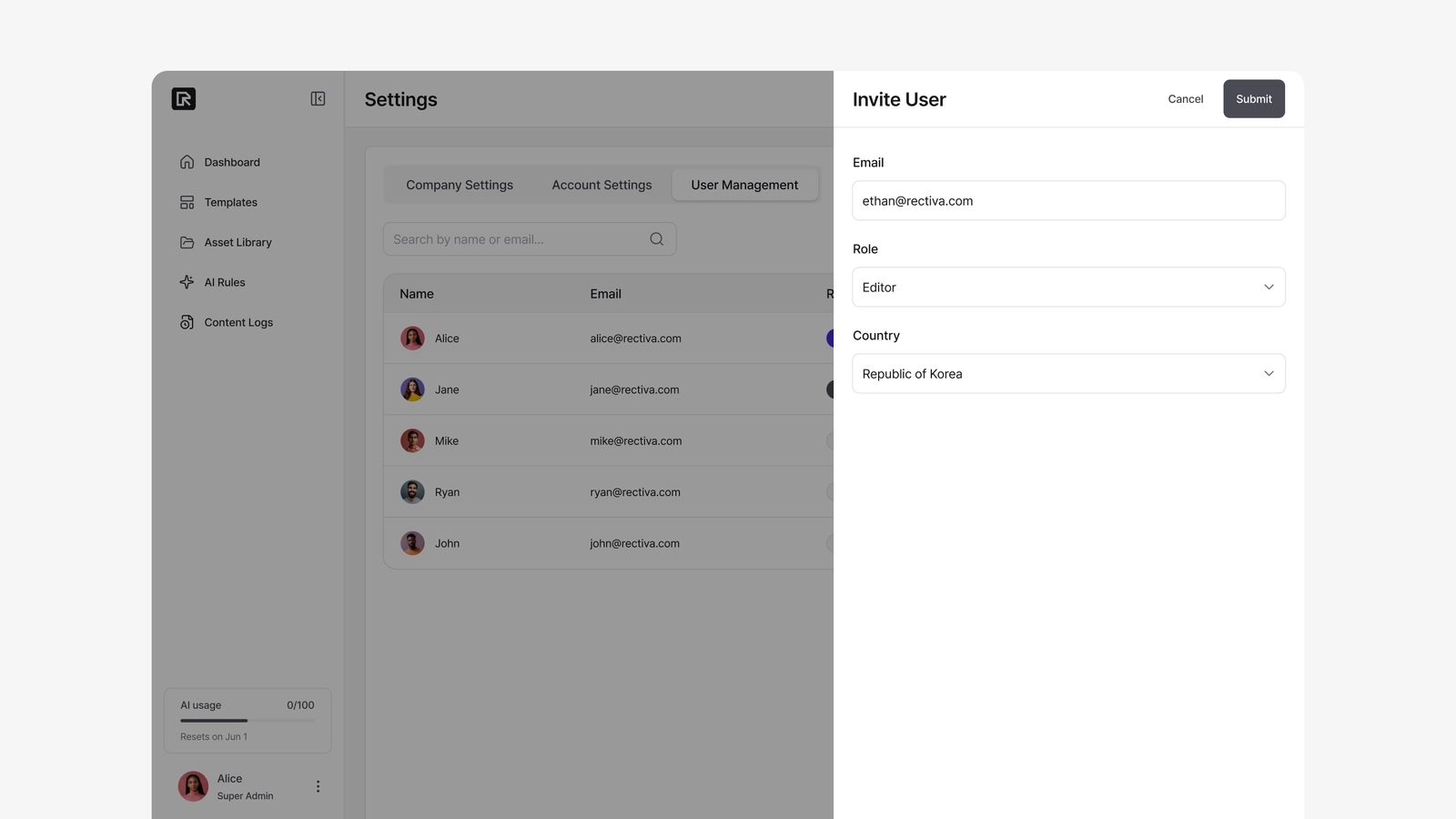
Your team joins by invitation. Go to Settings → User Management → Invite User and open the invite panel on the right. You enter:
- Email — the person you're inviting.
- Role — Regional Admin or Editor.
- Country — chosen from your operating countries.
Who can invite whom:
| Inviter | Can invite | Country |
|---|---|---|
| Super Admin | Regional Admin, Editor | Any of your operating countries |
| Regional Admin | Editor only | Their own country |
| Editor | — | — |
The invited person receives an email and joins your workspace once they accept.
Managing invitations
An invitation is valid for 7 days. Within a company, only one pending invitation can exist for a given email at a time. From the invitation list you can:
| Action | When | What it does |
|---|---|---|
| Resend | Invitation is still pending | Refreshes the expiry and sends the email again. |
| Reinvite | Invitation has expired or was cancelled | Creates a new invitation (the old record is kept as history). |
| Cancel | Invitation hasn't been accepted yet | Deactivates the pending invitation. |
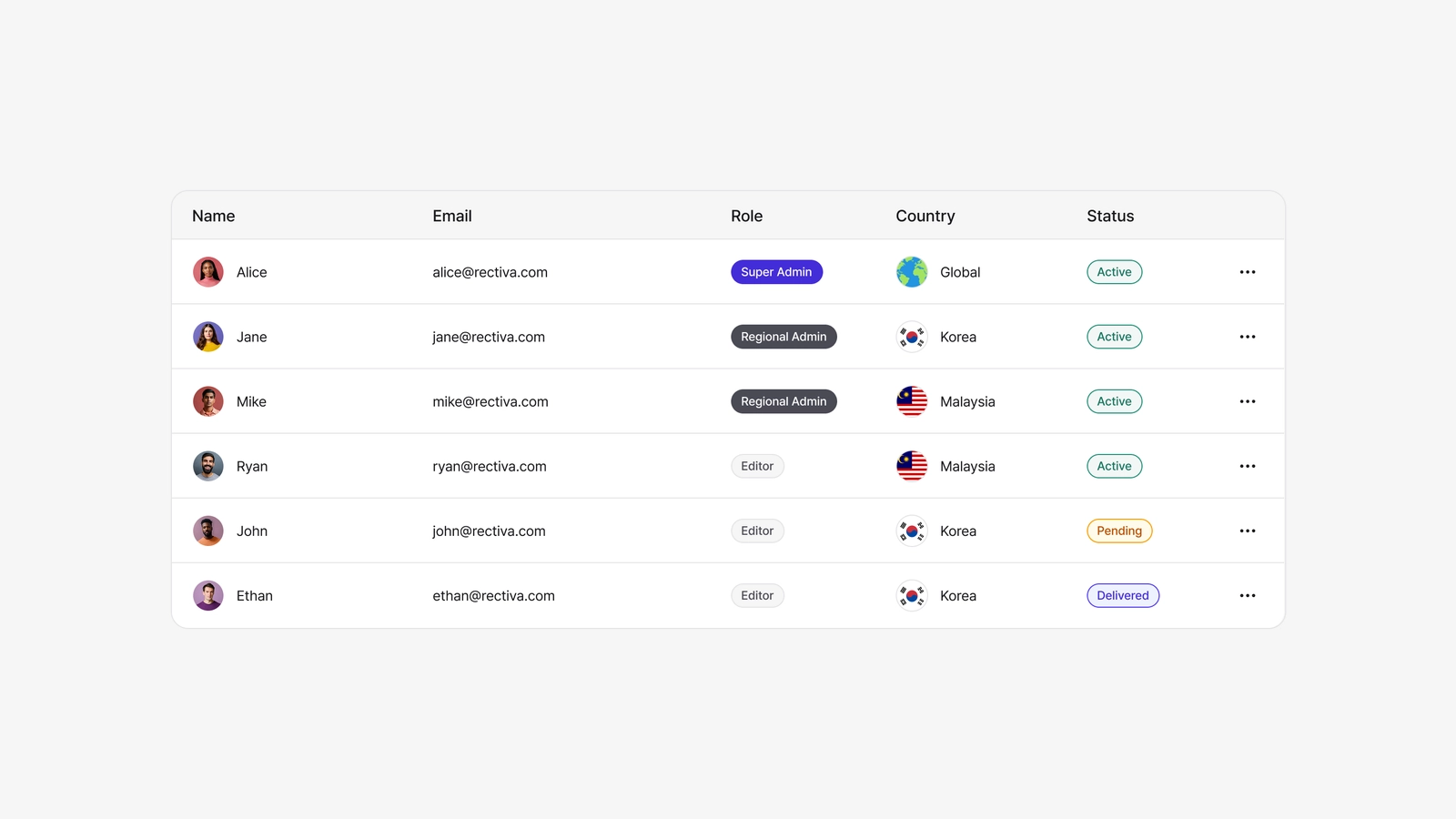
User Management is available to Super Admins and Regional Admins only. A Regional Admin sees and manages Editors in their own country; role changes and country reassignment are handled by the Super Admin.