Asset Library (Super Admin)
The Asset Library is the admin space for managing the core brand assets your templates reference — logos, graphics, fonts, and legal texts. It's where you register, update, and remove those assets in a consistent way; the actual design work happens in the template editor. It's at Admin → Asset Library, and only Super Admins can add or edit assets (Regional Admins can view).
Switch between the four asset types using the segmented control at the top. The upload button on the right changes to match the active tab.
Logos
Click Upload logo to open the upload panel.
- Format: PNG or SVG (transparency required — JPEG isn't accepted, since brand marks need exact color and a transparent background).
- Max size: 2 MB.
- Fields: Logo Name, and Variant Type — Primary, Light (for dark backgrounds), Dark (for light backgrounds), or Symbol.
Variant Type identifies which version of the same logo this is — for example, a white version for dark backgrounds. Add each version you need as its own entry.
Graphics (Motif)
Managed the same way as logos.
- Format: PNG or SVG.
- Max size: 5 MB.
- Variant Type: Light or Dark.
Fonts
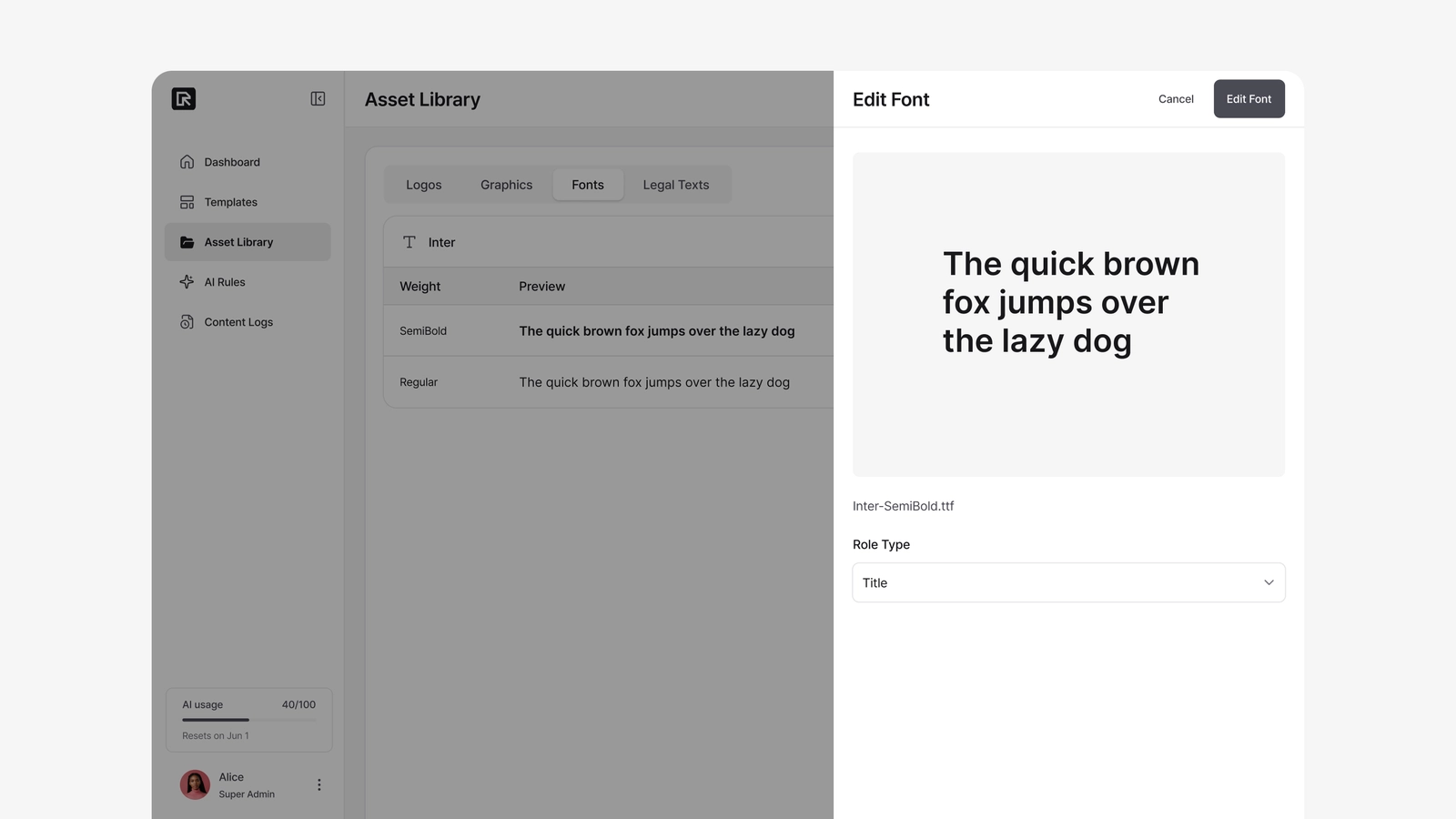
Fonts are grouped by family. Click Upload font.
- Format: TTF or OTF.
- Max size: 10 MB (large enough for CJK fonts).
- The family name and weight are detected automatically from the file.
- Role Type (optional): Title or Body. This is a hint that makes the font easier to pick later in a typography profile — you can leave it blank and set it afterward.
Each weight is a separate upload. For Regular and Bold, upload both files.
These uploaded fonts are what you choose from when building typography profiles and templates, so this step comes before typography setup.
Legal Texts
A table of reusable legal strings (disclaimers, copyright lines, terms). Click Add legal text.
- Legal Text Name — the identifier templates reference.
- Default Language (English) — required. English is always the fallback.
- Additional Languages — optional. Use Add language to add a localized version per language.
When an Editor places a legal text in a project, the matching language version is selected automatically based on the project's country.