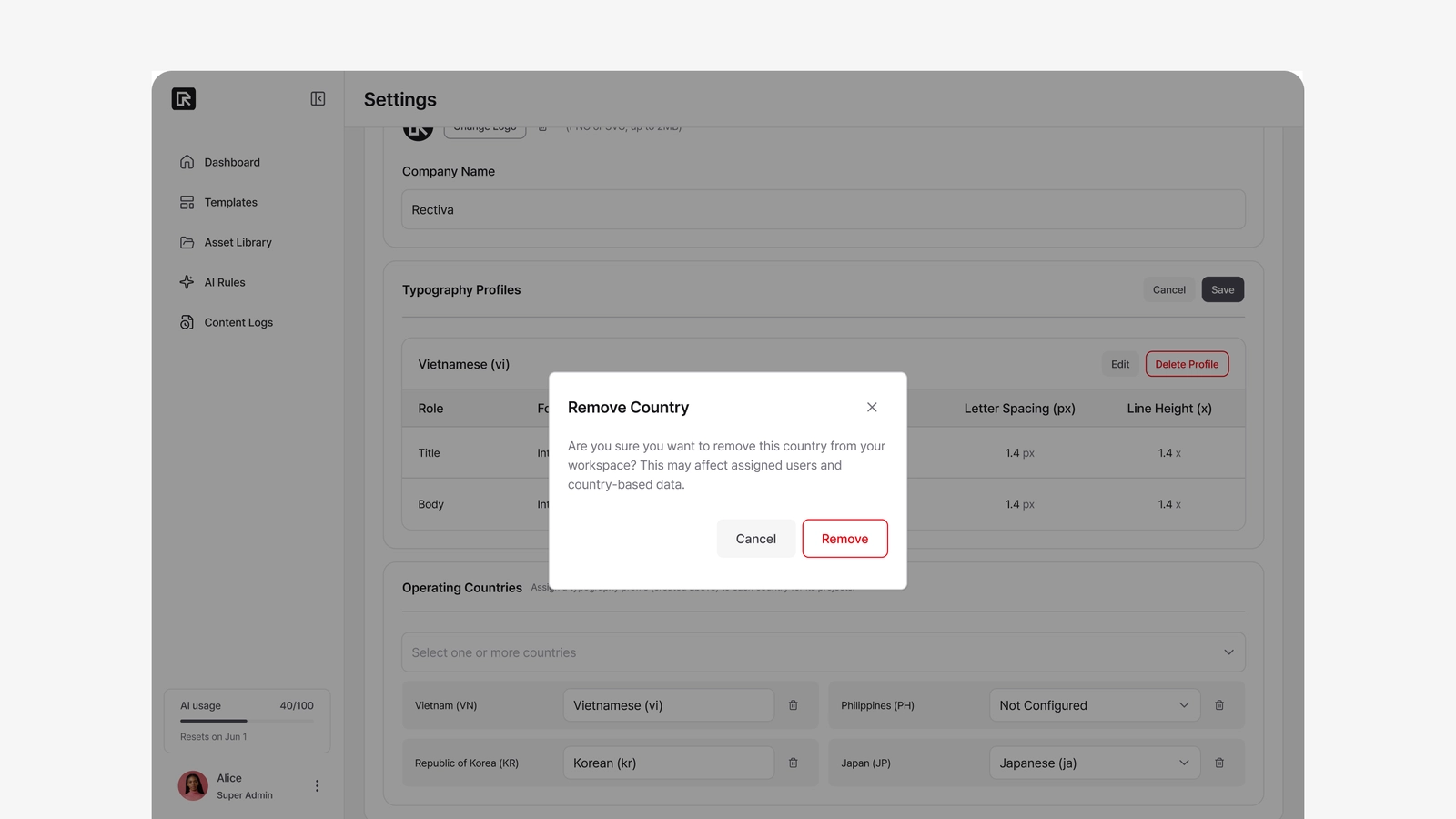
Typography Profiles (Super Admin)
A typography profile sets the line-height and letter-spacing used for each language. When a Super Admin builds a template and marks text as Local Language, that text takes its values from the profile connected to the project's country — so the same template reads naturally across markets. The text keeps the typeface set in the template; the profile fine-tunes its spacing per language.
You'll find this at Admin → Settings → Company Settings → Typography Profiles.
Creating a profile
- Click + Add Profile.
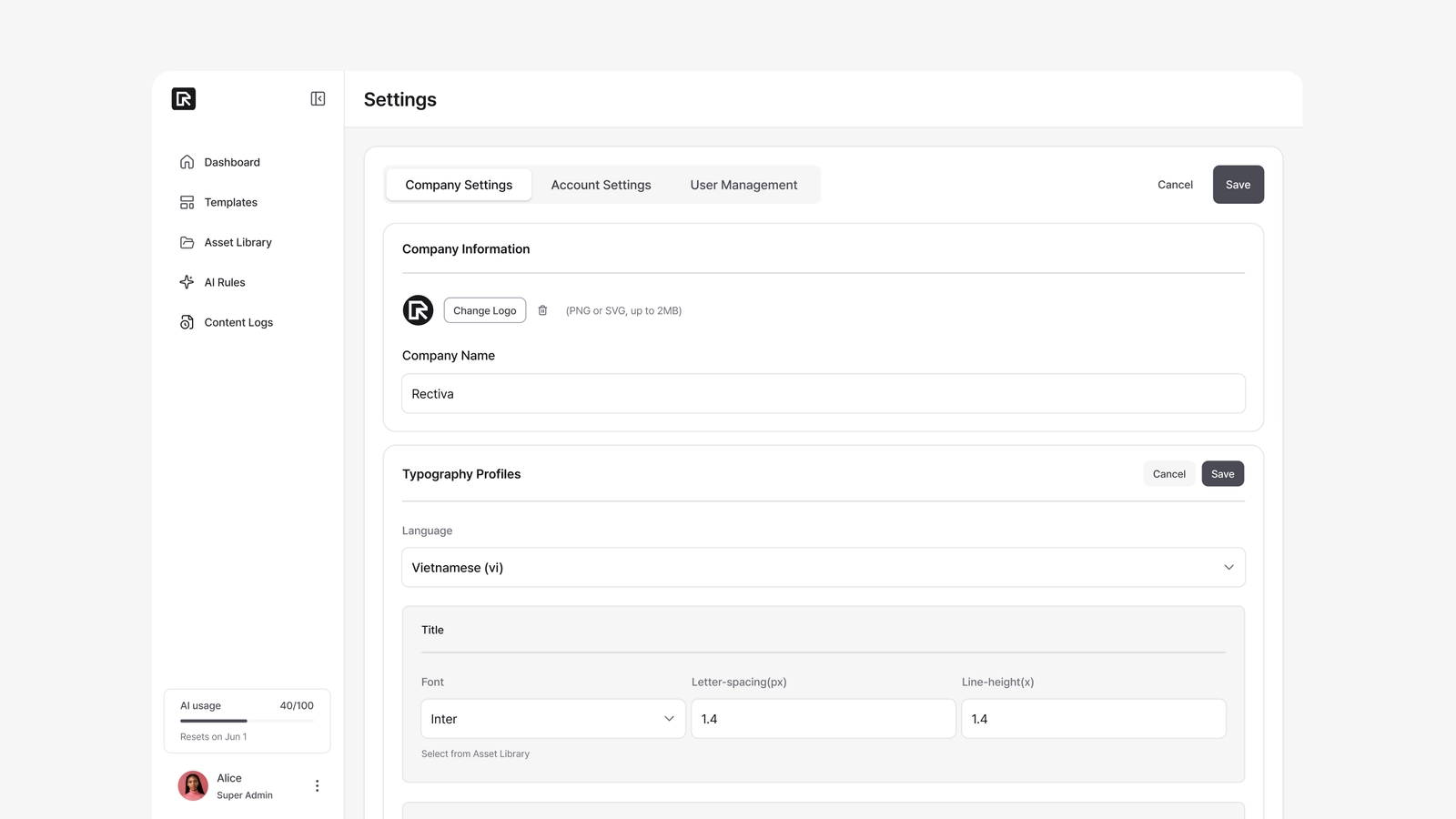
- Choose a language (only languages you haven't added yet appear).
- For each role — Title and Body — set:
- Font — chosen from your Asset Library fonts (the intended pairing for this language).
- Letter-spacing (px) — e.g.
0.5,-0.2. - Line-height (×) — a multiplier, e.g.
1.4,1.6.
- Save.
The profile then appears as a card showing the Title and Body settings.
Templates mark each piece of text as a Title or a Body role, so a profile defines spacing for each separately — for example, tighter headings and looser body text for readability.
Connecting a profile to a country
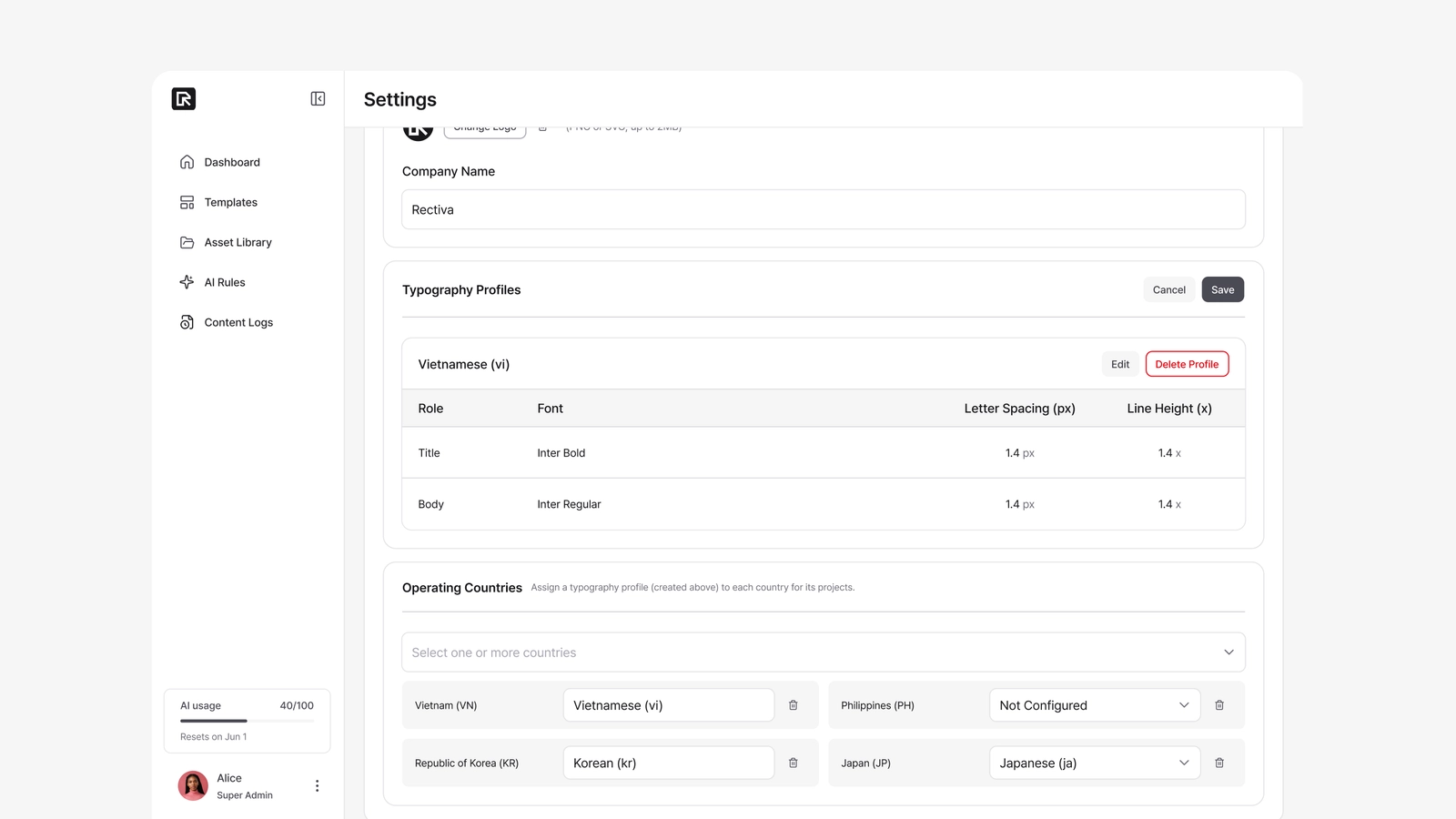
A profile takes effect once it's connected to a country. In the Operating Countries section just below, pick a typography profile from each country's dropdown. Any project created in that country — using a template with local-language text — then uses that profile's spacing.
Deleting a profile
If a profile is connected to countries, the delete dialog lists which ones. Deleting it sets those countries back to "Not configured."