Writing AI Rules (Super Admin)
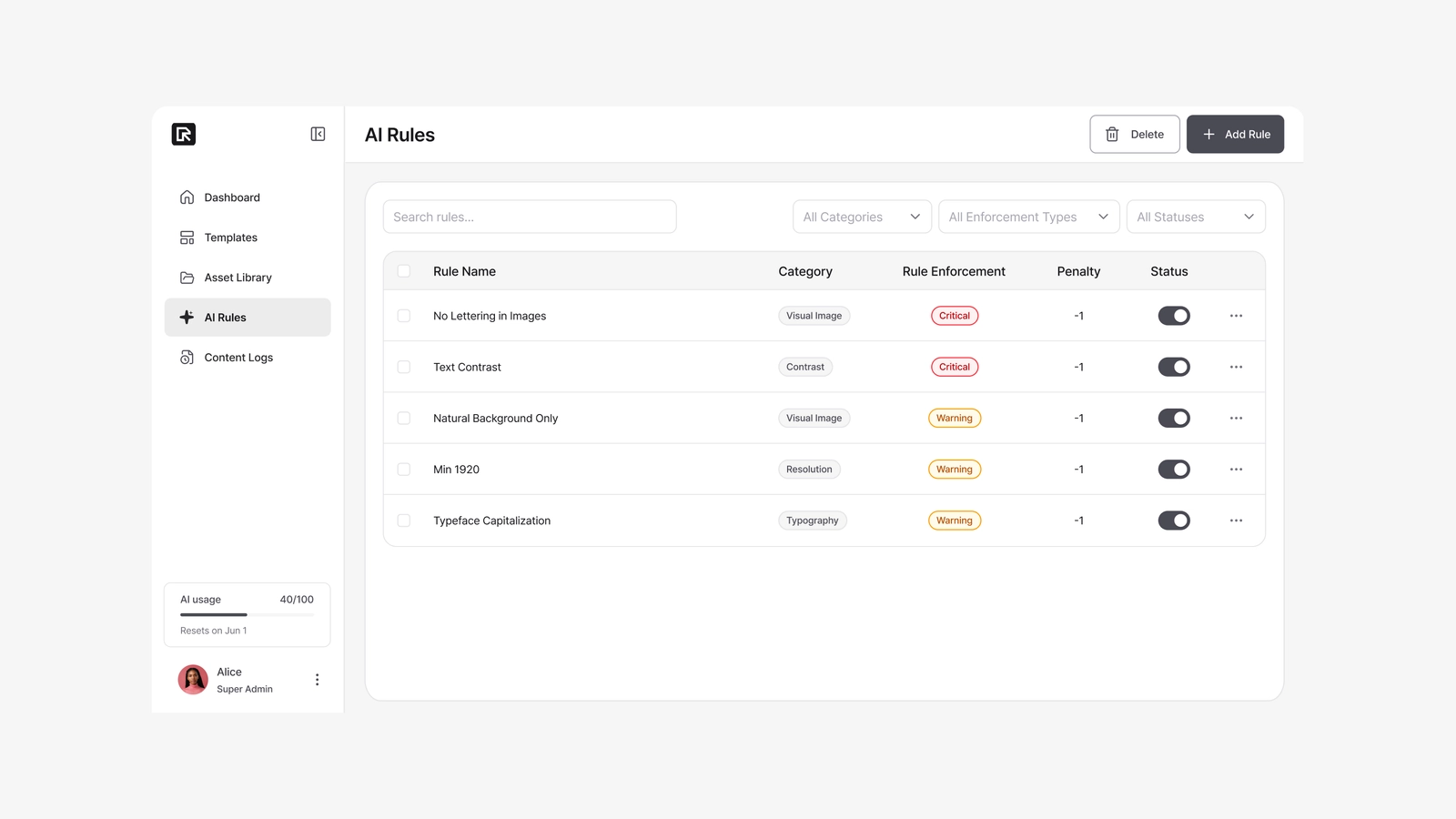
The AI Rules page is the admin interface for creating, managing, and testing the rules the AI applies when it evaluates content (images and text). Here you create, edit, and delete rules, toggle them active or inactive, set each rule's enforcement level (Critical or Warning), configure Auto-fix, and verify how a rule behaves using sample assets and test simulation.
AI Rules are how your brand guidelines are actually applied in production — not just documented. When an Editor runs AI Review, the AI checks their content against your company's active rules. The page is at Admin → AI Rules.
How a rule is structured
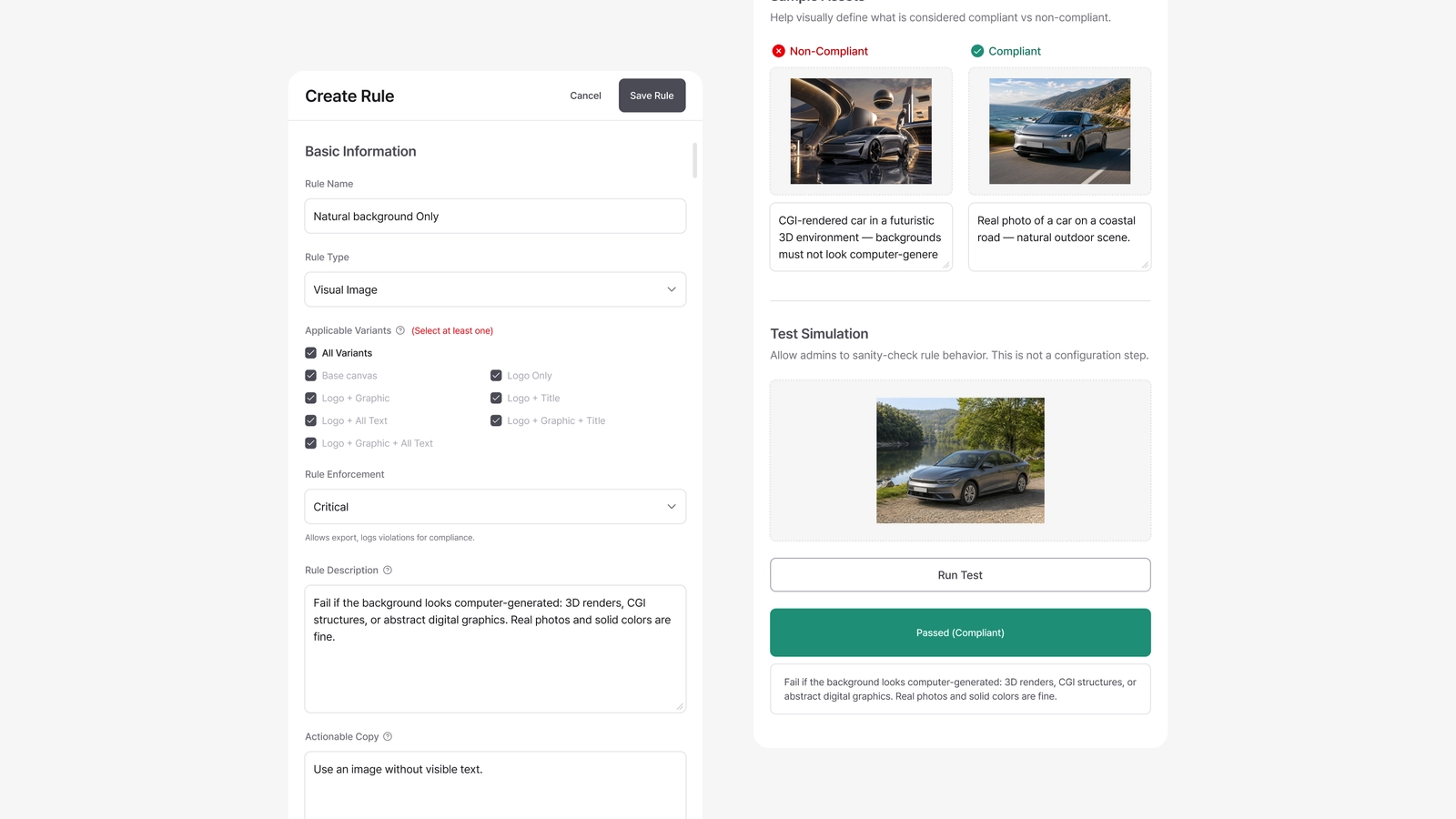
Click Add Rule to open the rule panel on the right. A rule has these parts:
Basic information
| Field | What it's for |
|---|---|
| Rule Name | An internal name so you can find the rule later (e.g. "Logo minimum contrast"). |
| Rule Type / Category | Visual Image, Logo, Color, Typography, or Compliance. This also determines whether Auto-fix is available. |
| Rule Enforcement | Critical or Warning — see below. |
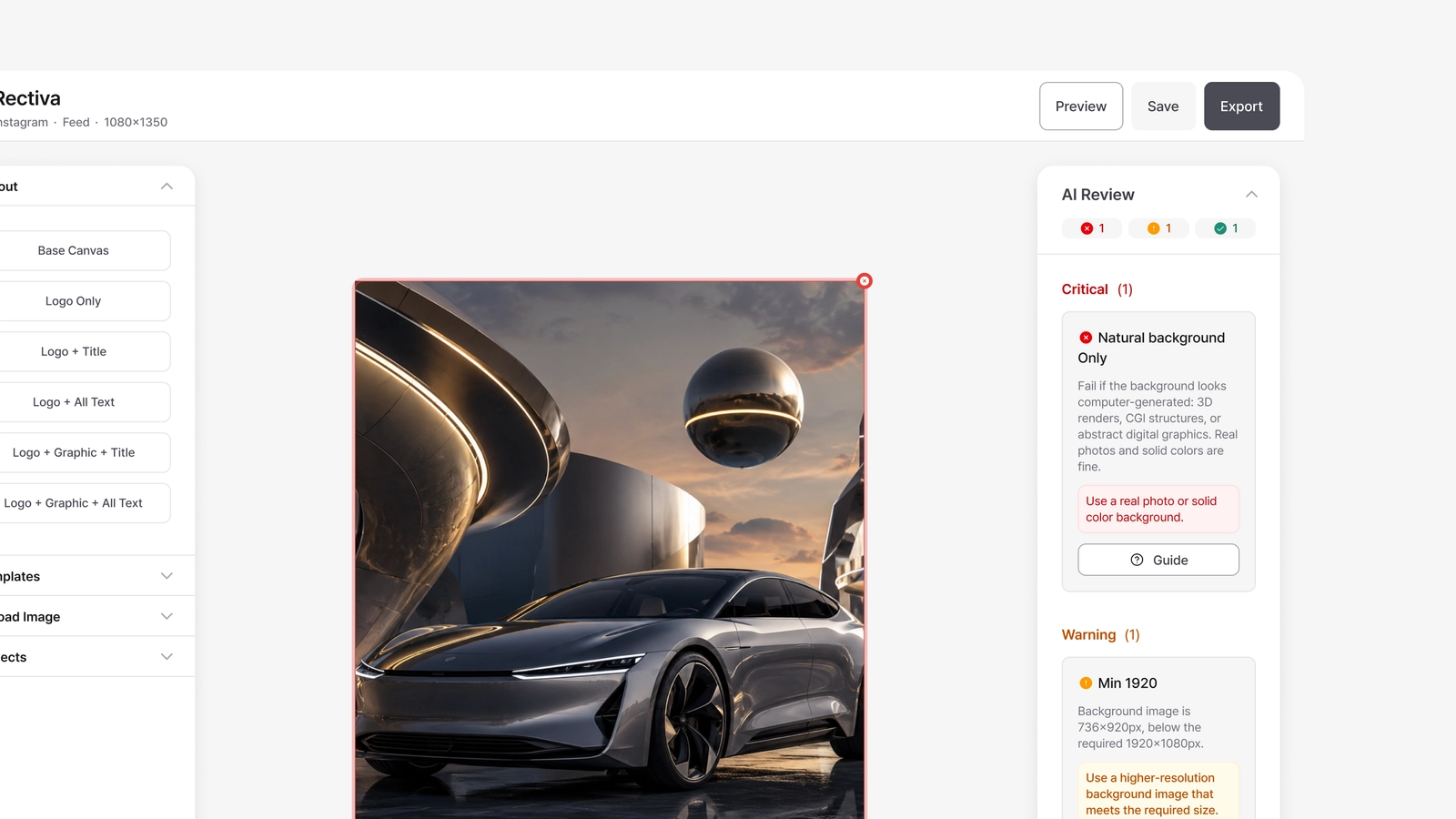
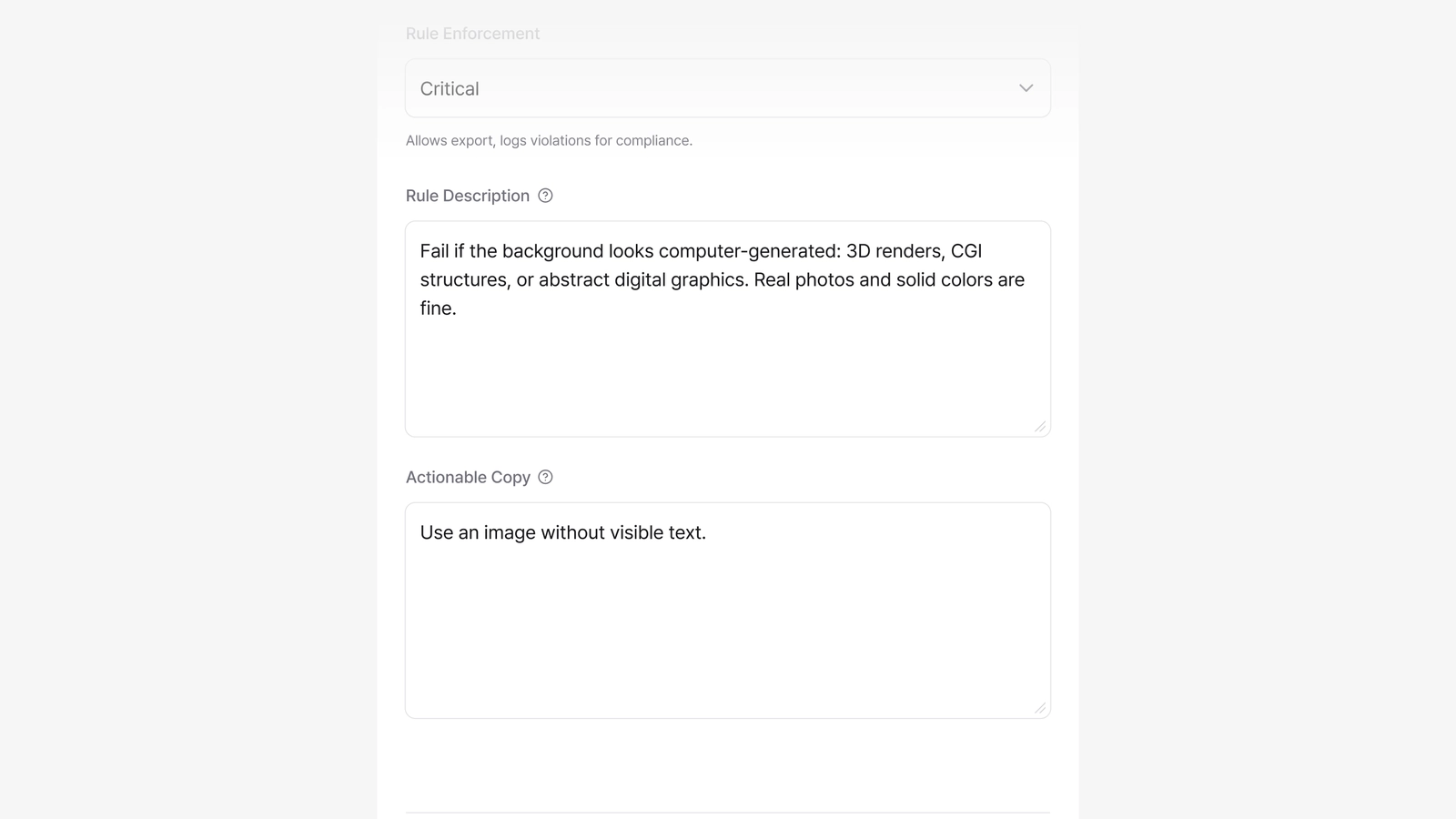
| Rule Description | Explains what the rule checks. It appears on the rule's card in the editor's AI Review panel, so designers can see what each rule is about. |
| Actionable Copy | The message shown on the rule's card when that rule is violated, telling the designer how to fix the issue. |
Description and Actionable Copy show up at different moments. The Description is always visible on the rule's card — it says what the rule is. The Actionable Copy appears when the rule is violated — it says how to fix it. Both are worth writing clearly, since designers read them.
Critical and Warning
Enforcement decides what happens at export:
| Enforcement | On violation |
|---|---|
| Critical | The Editor sees a confirmation dialog before exporting. They can still export ("Export anyway"), and the override is logged for HQ review. Use this for guidelines that shouldn't be broken. |
| Warning | Export proceeds. The violation is logged and counted in compliance analytics. Use this for recommendations. |
Export is never hard-blocked — a Critical violation can be exported after explicit confirmation. The intent is that the decision is deliberate and recorded.
Auto-fix (optional)
Some rules can correct themselves. Auto-fix is available only when the correct result is deterministic — one input with exactly one right answer:
- Available for Typography, Compliance, and (partially) Color rules — case conversion, forbidden-word replacement, restoring a font style or position, inserting a required legal text.
- Not available for Visual Image rules (they need human judgment) or Logo rules (logos are locked in templates, so there's nothing for the editor to break).
When you enable Auto-fix, you set the fix action (for example, "Convert to Title Case") and the label shown on the editor's fix button (it defaults to "Auto-fix").
Sample Assets
You can add up to two non-compliant and two compliant example images, each with a short description — for rules that are hard to put into words (tone, aesthetic), one clear contrasting pair usually does most of the work — pick typical examples near the line rather than extreme ones. They serve two purposes:
- They appear to the designer as a Guideline popup in the editor, showing what good and bad look like.
- They're sent to the AI as context, helping it judge the rule more accurately.
Since designers read the descriptions, keep them clear and specific — "low logo contrast on a dark background" is more useful than "image looks off."
Applicable Countries (multi-country companies)
If your company has two or more operating countries in Company Settings, each rule also has an Applicable Countries setting. It defaults to All Countries. Untick it and choose specific countries when a guideline only makes sense in certain markets — a color that carries a different meaning locally, a legally required disclaimer, a claim that's fine in one country and not in another.
- A rule limited to specific countries is evaluated only for projects in those countries. Editors elsewhere don't see it in their Rules panel, and AI Review doesn't check it for them.
- Keep brand-core rules (logo size, cropping, safe areas) on All Countries. Country-specific rules are the exception, not the default — one list of rules with a few market tags is easier to keep consistent than a separate rulebook per country.
- In the rules list, the Countries column shows a globe for All Countries or the flags of the selected countries; hover to see their names. The country filter shows everything that applies in a given market — global rules plus that market's own.
- If you later remove a country from Operating Countries, rules that still point to it show it as "(removed)". Untick it in the rule panel before saving.
- Regional Admins see the global rules plus the rules for their own country.
Test Simulation
The rule panel also includes a Test Simulation section. Upload a single test image and click Run Test to see how the rule evaluates it — the result comes back as Passed (Compliant) or Issue Detected, along with the AI's reasoning. It's a way to confirm a rule behaves as intended before you rely on it. Test Simulation is for checking only; it doesn't change the rule itself — and it always runs the rule regardless of its Applicable Countries, so you can test a market-specific rule from anywhere.
Writing effective rules
- Make Actionable Copy specific. State the problem and the fix: "The logo is too small — scale it to at least 100px to stay legible on mobile."
- Reserve Critical for what truly shouldn't ship. If everything is Critical, every export becomes a confirmation step.
- Use Sample Assets for anything visual. A "wrong vs. right" pair communicates faster than text.
How rules reach the Editor
Only active rules are evaluated. When an Editor runs AI Review, Rectiva gathers the active rules (filtered to the layout in use and to the Editor's country), sends the canvas image along with your rule descriptions and samples to the AI, and returns a Critical / Warning / Passed result per rule — which the Editor sees in their AI Review panel.