Using the Editor (Editor / Regional Admin)
The Editor is where you turn one of your Super Admin's templates into finished content — adapting its text and imagery for your market while the brand stays consistent. Its three roles are simple: create (edit text, and place or replace images, logos, and graphics), validate (check brand and platform compliance with AI Review), and export (save and download the verified result). The brand-critical elements — logo, required titles, legal text — are locked by your Super Admin, so whatever you change stays on-brand.
Editing text
There are two ways to edit text:
- Double-click the text on the canvas to edit it in place, or
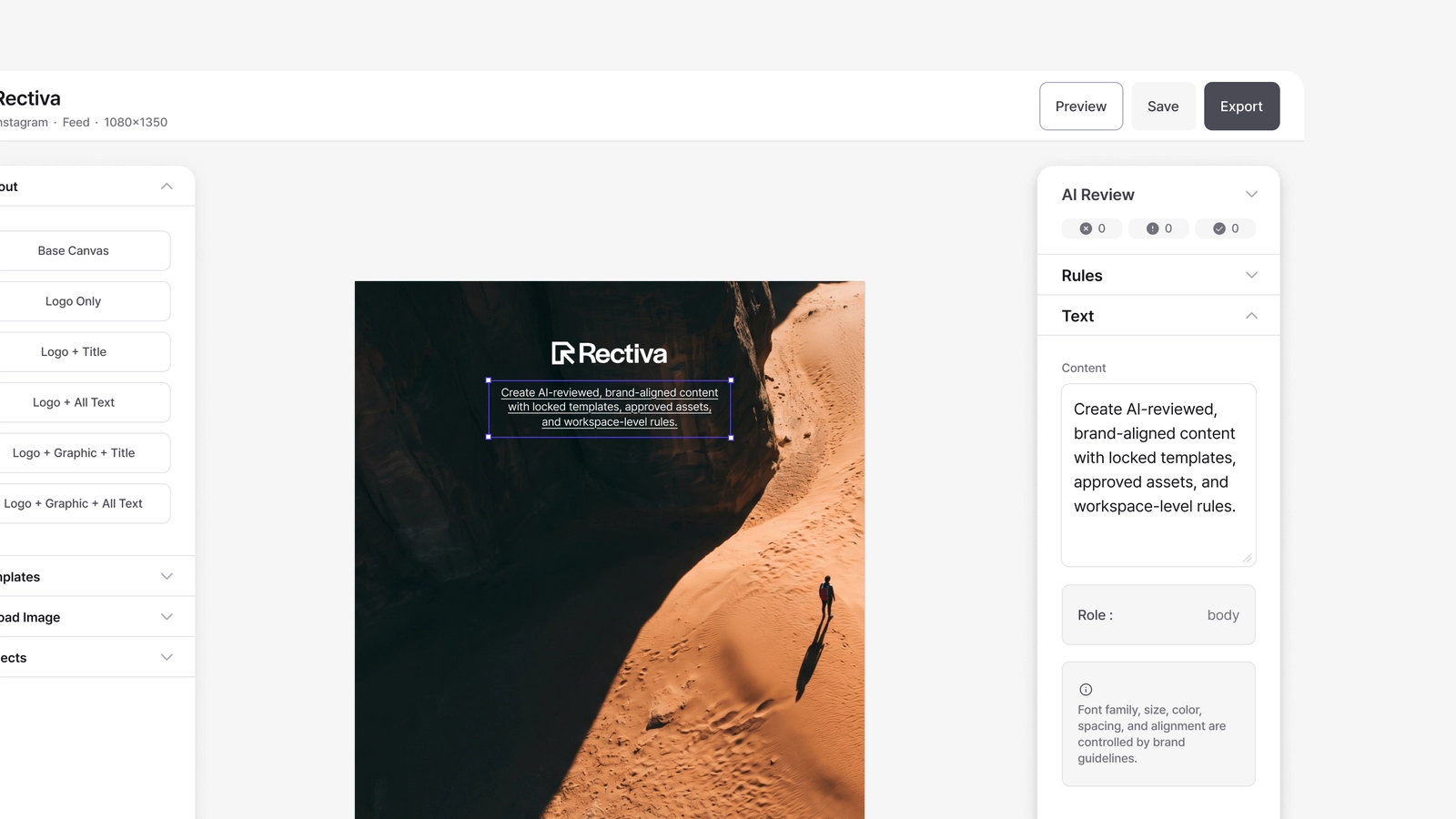
- select the element and type in the Content box of the Properties sidebar on the right.
Either way, the canvas updates live as you type — and the text box handles layout for you. As you type it grows to fit, so nothing gets clipped. Drag a text box's edge to set a width, and the text wraps neatly within it — including East Asian scripts like Korean, Japanese, and Chinese, which wrap cleanly by character. When a text box gets taller, the elements below it shift down so the template's spacing stays intact.
Legal text is fixed by your Super Admin and can't be edited.
Adding or replacing images
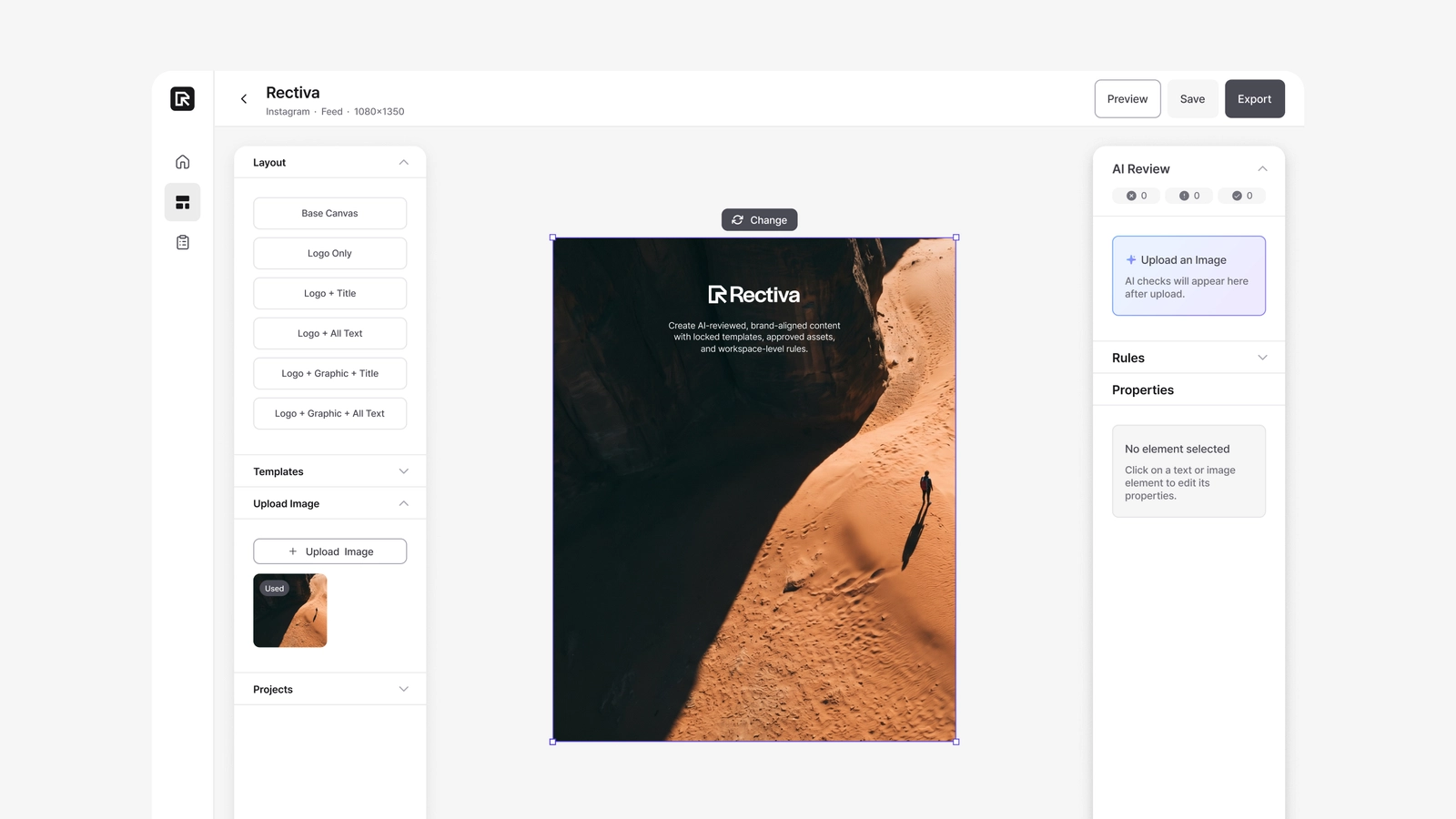
Background image: use Upload Image in the left panel. Choose a file and it appears immediately. If the image is smaller than the canvas, you'll see a resolution warning (it still uploads). Uploading an image runs AI Review automatically.
Logo / graphic / background: select the element on the canvas and click Change on its bounding box to swap the file.
- Formats: PNG, JPG, WebP.
- Max size: 10 MB.
Moving and resizing
Drag an element to move it, or pull its corner handles to resize. Locked elements — like the logo and required titles — can't be moved or changed.
The AI Review panel & guidelines
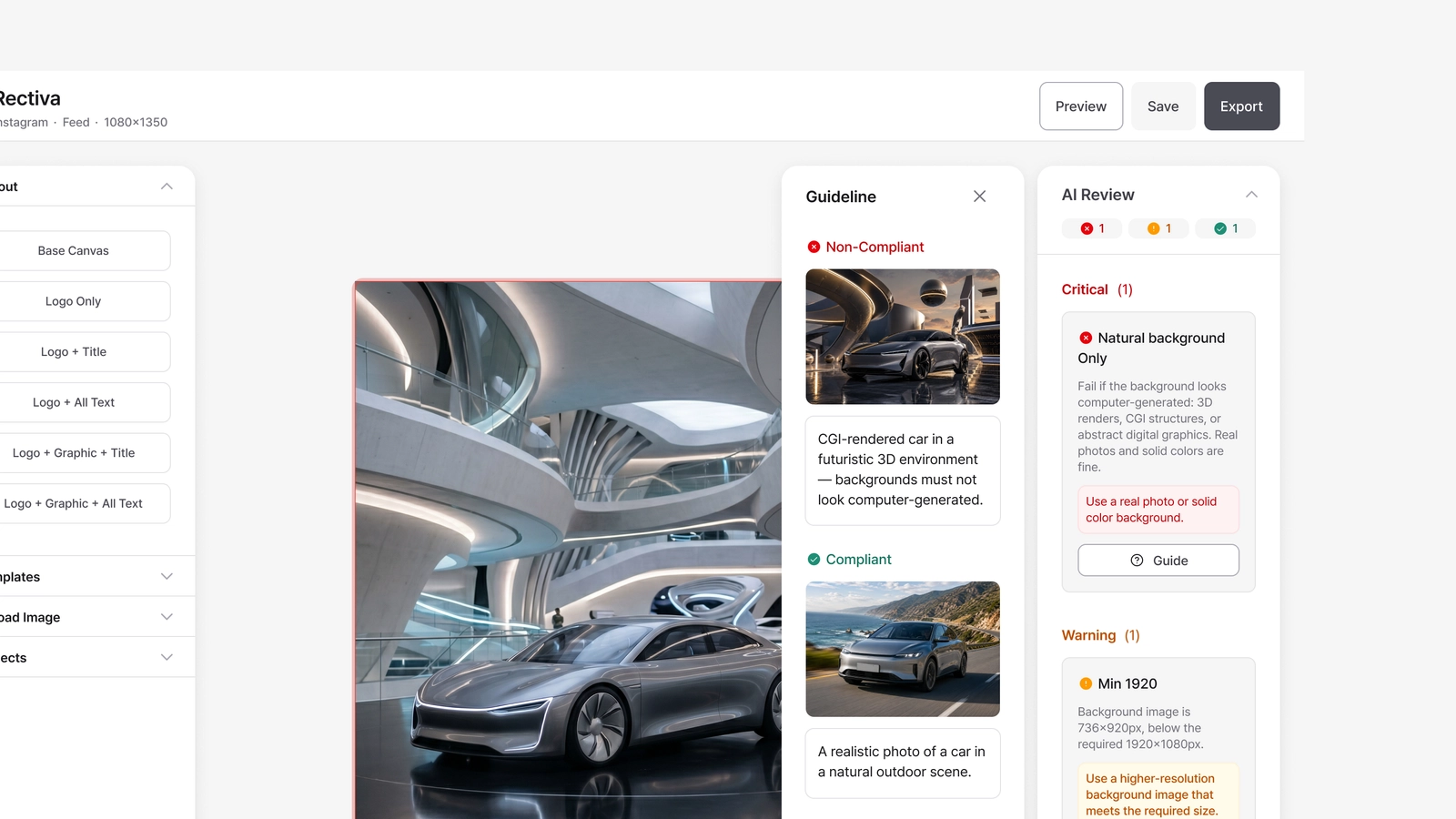
The right-hand AI Review panel shows the result for each rule — Critical, Warning, or Passed. Hover over a card to highlight the element it points to on the canvas. If a rule has a Guideline, click it to see the good and bad examples your Super Admin attached — handy when you're not sure what the rule is asking for.
When a rule supports Auto-fix, a fix button appears on its card. Click it, and Rectiva applies the correction and re-checks for you.
Saving
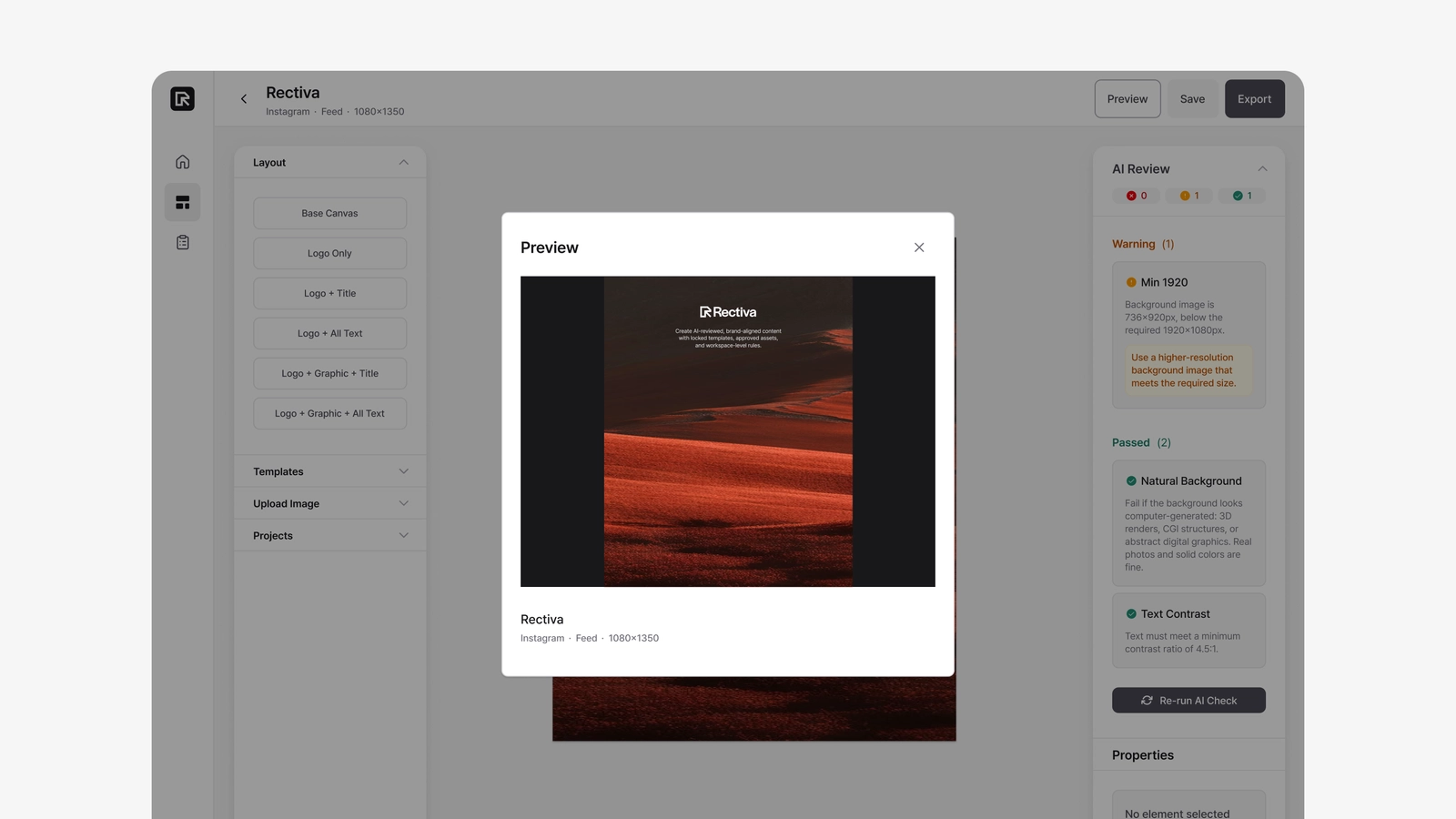
Use Save to store your work (it also regenerates the preview). If an upload is in progress, Save waits briefly for it to finish so it doesn't save a broken link.
A note for Regional Admins
As a Regional Admin, you can open any project in your country, but someone else's project is read-only — you can view it and read the AI Review, but the text box is disabled and you can't save or export. Use it to review your team's work, and send feedback through your usual channel.