Beta Testing Guide
Thanks for trying Rectiva. This page suggests an order to walk through, so you experience the product the way it's meant to flow.
Suggested flow
Rectiva flows from setup, to creation, to review. To see it end to end:
Setting up (Super Admin)
When you sign up, you become the Super Admin of a new workspace. From there:
- Add a few AI Rules (guide).
- Upload your brand assets — logos, fonts, legal texts (guide).
- Create a Typography Profile for a language and connect it to a country (guide).
- Build a template, marking at least one text element as Local Language (guide).
- Invite your team from Settings → User Management (guide).
Creating (Editor / Regional Admin)
- Start a project from a template (guide).
- Edit the text and upload a background image (guide).
- Run AI Review, then export (guide).
Reviewing (Super Admin / Regional Admin)
- Check that the export shows up in Content Logs, and that the Dashboard reflects it (Content Logs · Dashboard).
We'd love your feedback
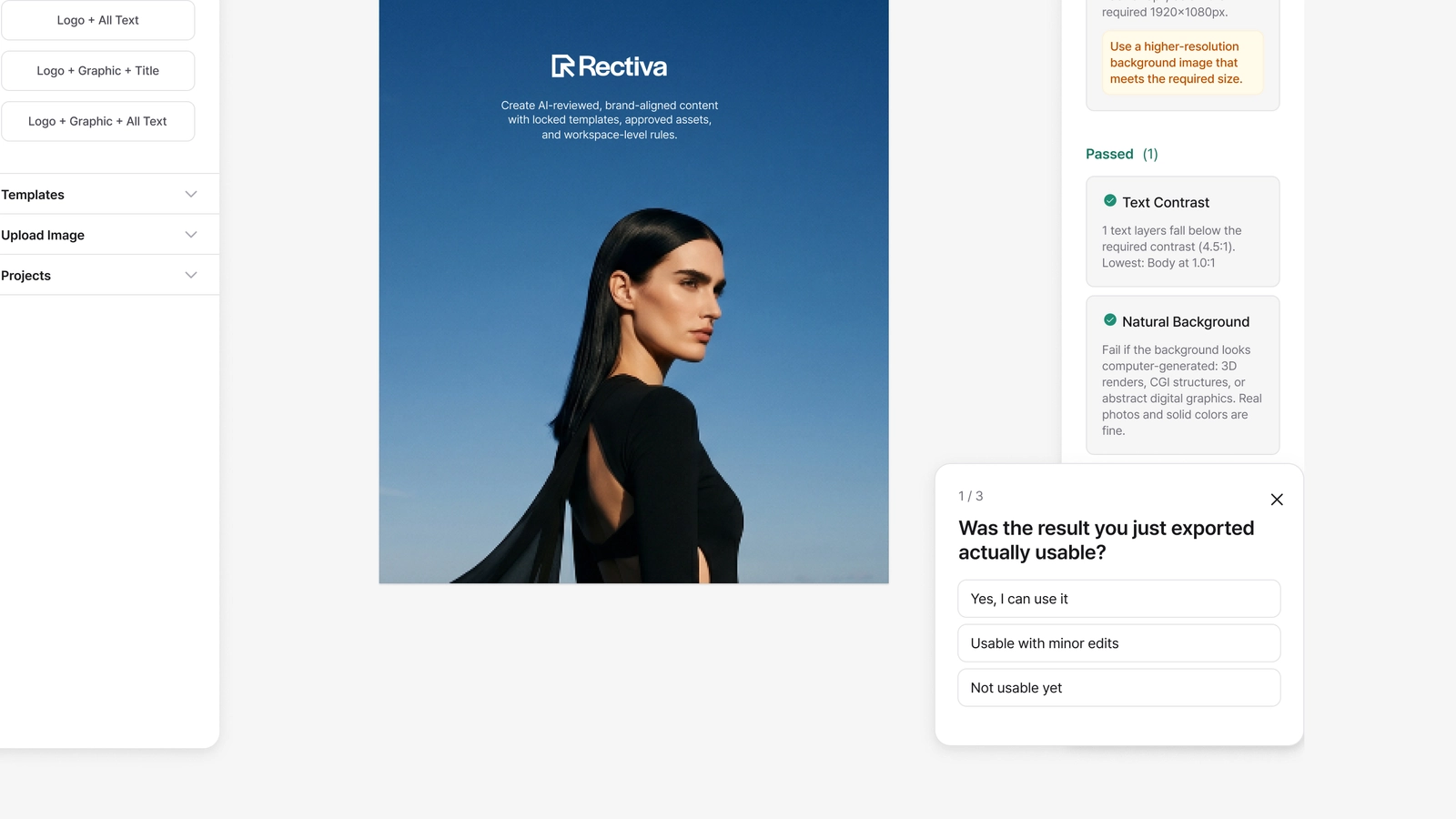
Your input genuinely helps us make Rectiva better. At a few moments as you work — after you create your first rule, and after your first export — a short in-app survey appears. If you have a moment to share your thoughts, your answers come straight to us.
For anything else — something that felt off, or an idea for improvement — we'd be grateful if you'd write to us at support@rectiva.io. Every bit of feedback helps us refine the product.
Rectiva is in beta, so the interface is still evolving — a few screens may look a little different from these guides.