AI Review & Export (Editor / Regional Admin)
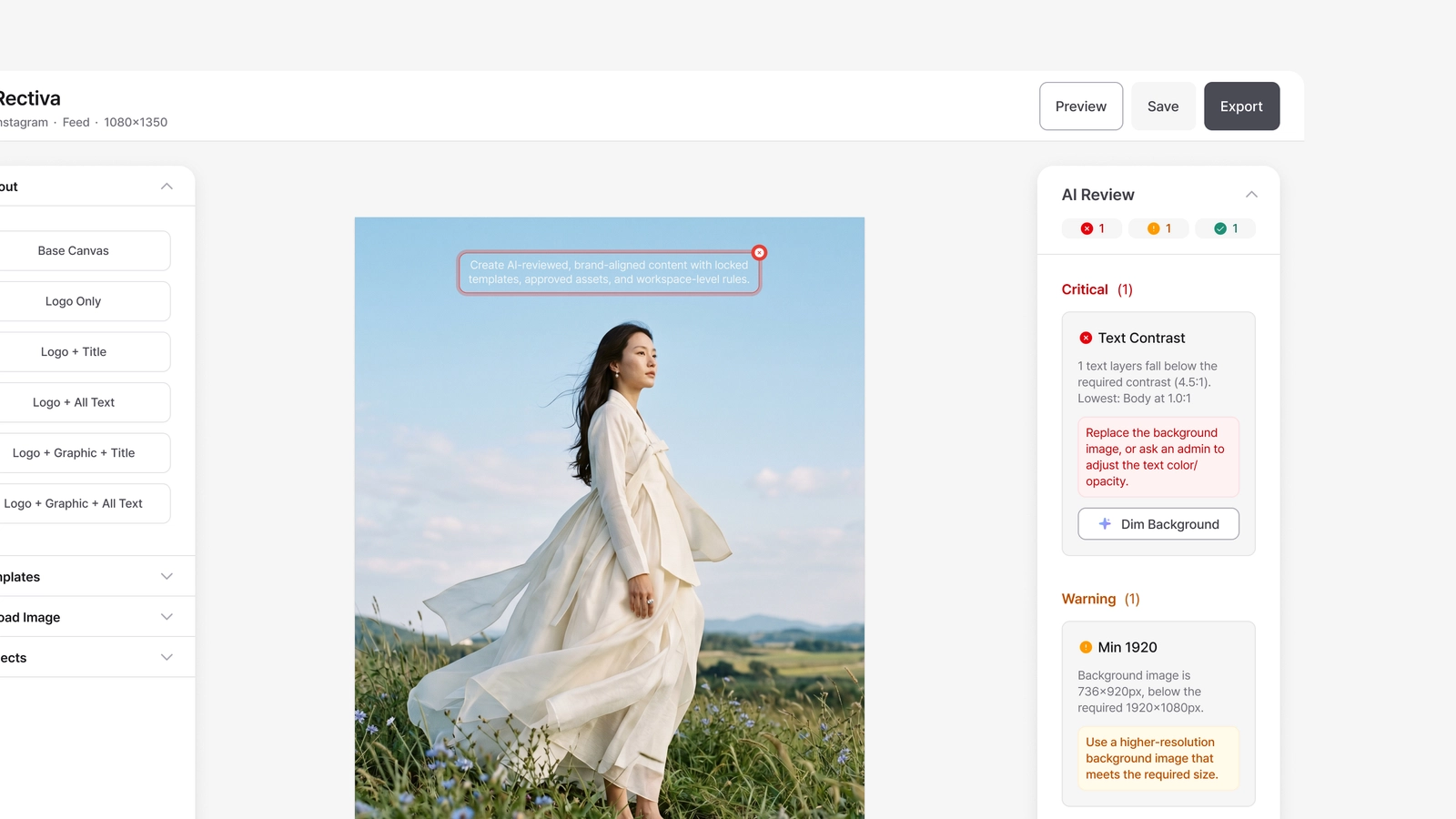
Before you export, your content goes through AI Review, and that's what keeps every export on-brand. Instead of HQ catching brand-guideline issues after the fact, the AI checks your work against your company's rules as you go — so anything off-brand surfaces and gets fixed before the content ships. Content stays consistent across markets, and there's far less review back-and-forth.
This page explains what the results mean and how export handles them.
Running AI Review
AI Review runs automatically when you upload your image. You can also re-run it any time with Run AI Check — for example, after editing. The AI checks your canvas against your company's active rules and returns a status per rule:
| Result | Meaning |
|---|---|
| Passed | No issue with this rule. |
| Warning | A soft issue — you can export, and it's logged. |
| Critical | A brand-critical violation — export needs explicit confirmation. |
| Error | The rule couldn't be evaluated (e.g. the AI call failed). Treated like a Critical at export. |
If you edit the canvas after a review, the results become stale — Rectiva knows the review no longer matches the canvas and asks you to re-check before export.
Exporting
Click Export. One of two things happens:
- No Critical / Error / stale issues → the export settings open directly.
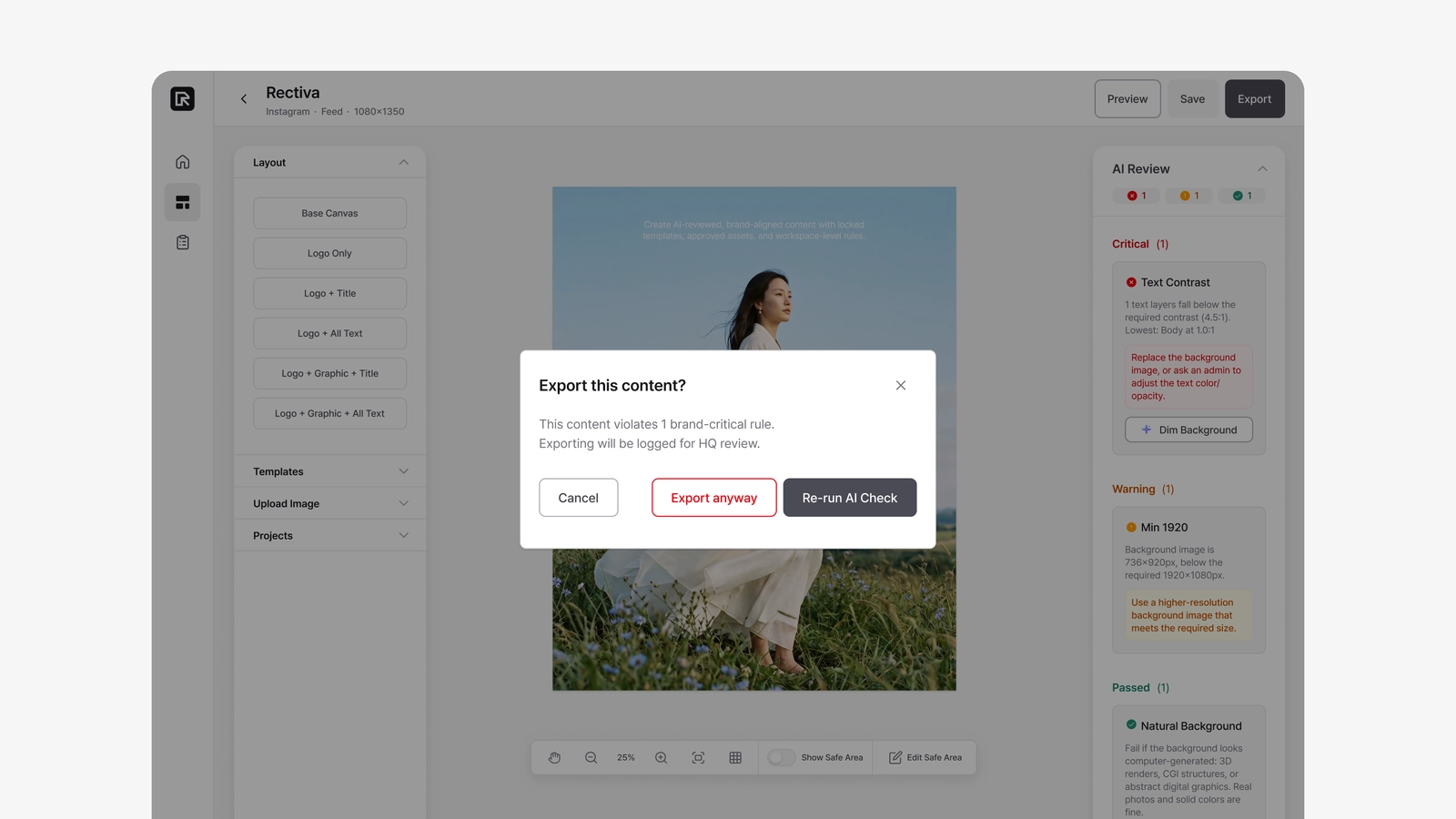
- There are issues → a confirmation dialog appears first, showing how many Critical violations there are, whether any rule failed to evaluate, and whether the review is stale.
From the dialog you can:
- Re-run AI Check — re-review with the current canvas (recommended if it's just stale),
- Export anyway — proceed despite the violations,
- Cancel.
"Export anyway" is available, and it's recorded. Export isn't hard-blocked, but exporting over a Critical violation is logged for HQ review with the exact rules involved — so it stays a deliberate, visible decision.
Export settings
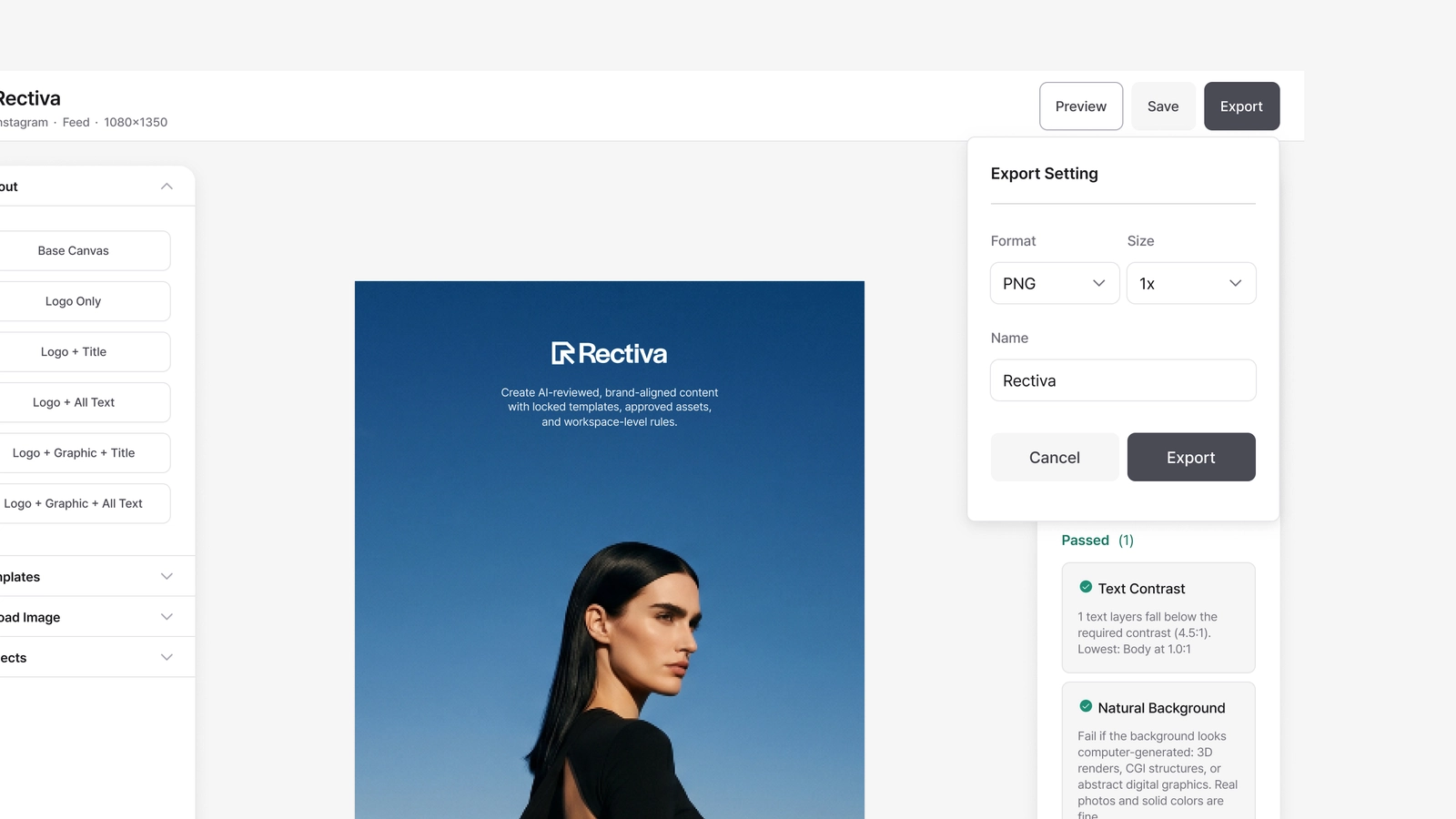
Once you're through, you choose:
- Format: PNG or JPG,
- Size: 1x or 2x,
- File name.
The file downloads as your-name.format, and the export is recorded in Content Logs with its compliance score and any overrides.
Export checklist
Before exporting:
- AI Review has been run (export needs it),
- Critical / Error issues are resolved — or you've consciously chosen to override,
- The review isn't stale (re-run if you edited after reviewing),
- The background image resolution is adequate.
Feedback from HQ
If you exported over a Critical rule, HQ (or your Regional Admin) may leave a note on that export. When they do, a Feedback from HQ block appears at the top of your Home page with the project, the note, and who wrote it. Open the project and the same note sits at the top of the right panel, above AI Review.
Press Got it when you've read it, or just export the project again — either one clears it. Nothing is blocked while a note is open.